Using Integritas in chat
How to use Integritas tools in chat with Claude or ChatGPT — what to say, example prompts, and workflow.
Overview
Once you have connected Integritas to your assistant (Claude or ChatGPT), you use it by asking in natural language. The assistant chooses the right tool, and calls the Integritas MCP server for you.
What you can do
Stamp a file
Ask the assistant to stamp or anchor a file on the Minima blockchain.
Example prompts:
- “Stamp this hash with Integritas”
- “Anchor this hash with Integritas”
Check if already stamped
Ask whether a file (or its hash) has already been stamped.
Example prompts:
- “Has this been stamped with Integritas?”
- “Check if this hash exists with Integritas”
Verify a file
Ask the assistant to verify or authenticate a file and optionally get a PDF report.
Example prompts:
- “Verify this file with Integritas”
- “Authenticate this document with Integritas”
Confirm the tool was called
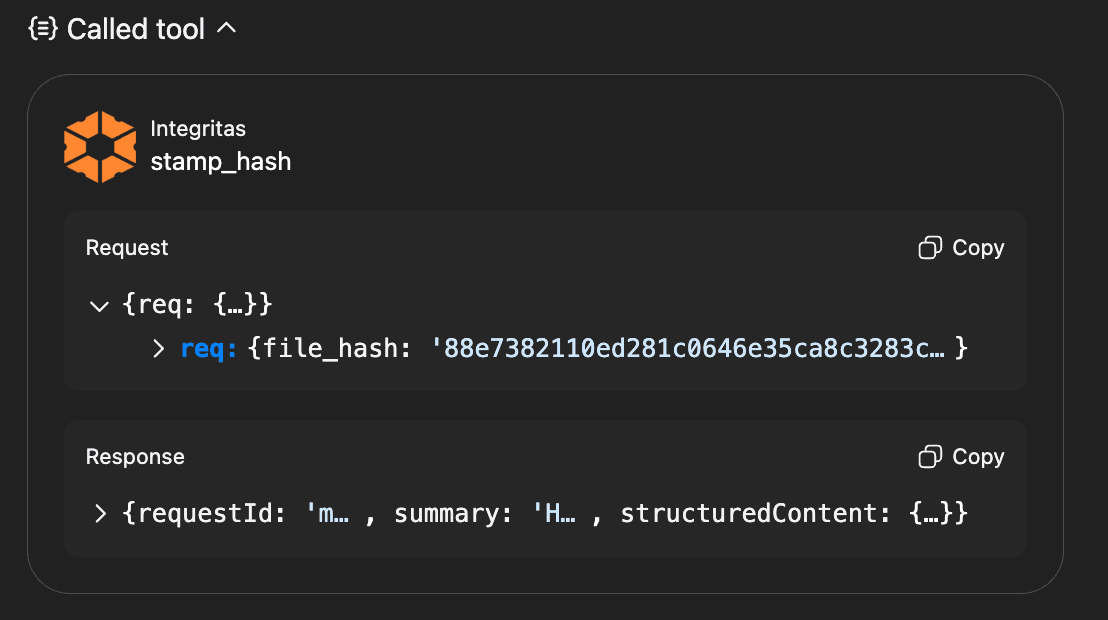
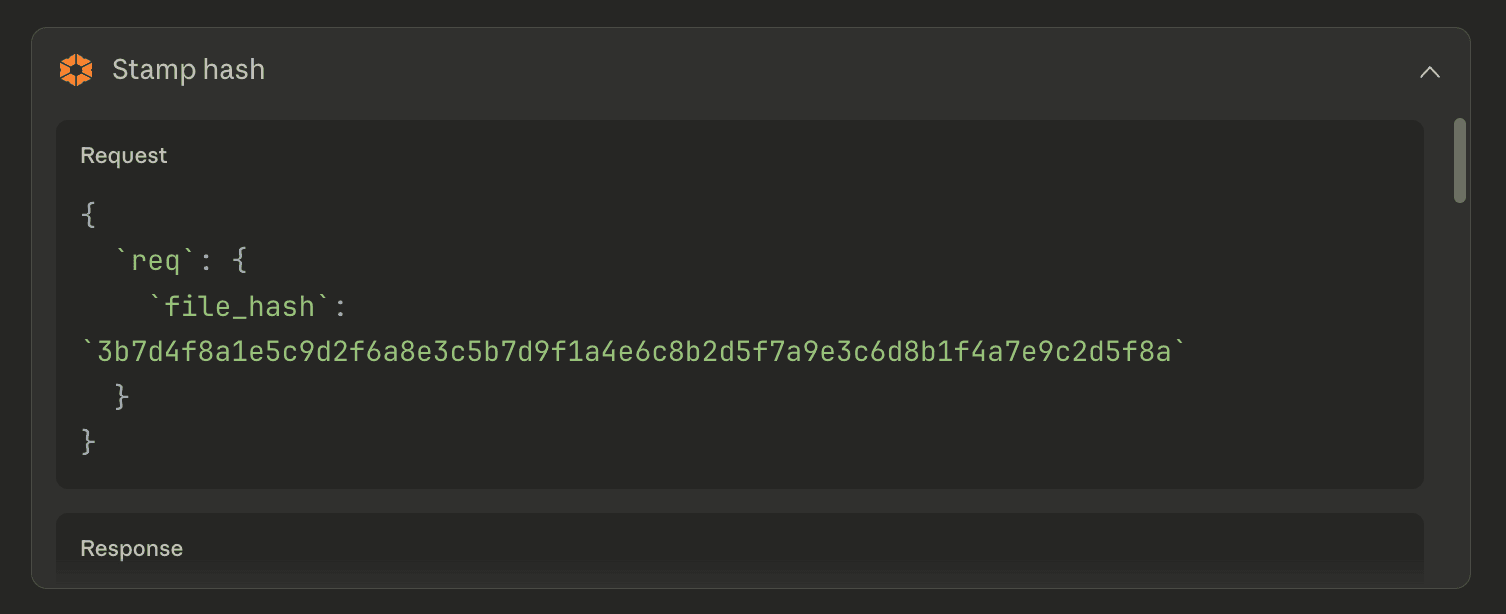
It is important to check that the assistant actually called the Integritas tool and didn’t invent a result. Look for a “Called tool” (or similar) indicator at top of the chat response, with a dropdown where you can see the input sent to the MCP server (e.g. file_hash) and the output returned (e.g. status, verification data, report link).
Reviewing that input and output lets you confirm the real MCP response and catch any mistakes or hallucinations.
ChatGPT call Integritas MCP tool stamp_hash
Claude call Integritas MCP tool stamp_hash
Recommended workflow: hash first, then use the hash
If you prefer to hash the file in chat, follow the two steps below to reduce the risk of the assistant losing context or sending the wrong hash:
-
First prompt: Upload your file and ask the assistant to generate a SHA3-256 hash of it.
For example:
- Attach file
- Prompt: “Generate a SHA3-256 hash of this file”
-
Second prompt: Use the hash you received with any of the tools. For example:
- “Stamp this hash with Integritas”
- “Check this hash with Integritas.”
- “Verify this hash with Integritas”
Refer to the hash (or paste it) so the assistant uses the correct value.
File uploads and accuracy
When you upload files in chat, some file types are modified (e.g. resized or re-encoded) by the platform. The file the assistant hashes may then differ in size or content from your original. Check that the file size the agent returns matches your local file to confirm it's correct.
For technical details, see the Tool reference.