Connecting with Cursor
Connect Cursor to the Integritas Remote MCP Server.
1. Open MCP settings
Open Settings → Cursor Settings → Tools & MCP → New MCP Server.
2. Add the server config (without headers)
Paste the following JSON config:
Save the mcp.json file.
Go back to Cursor Settings and click Authorize on the Integritas server.
3. Authorize the connection
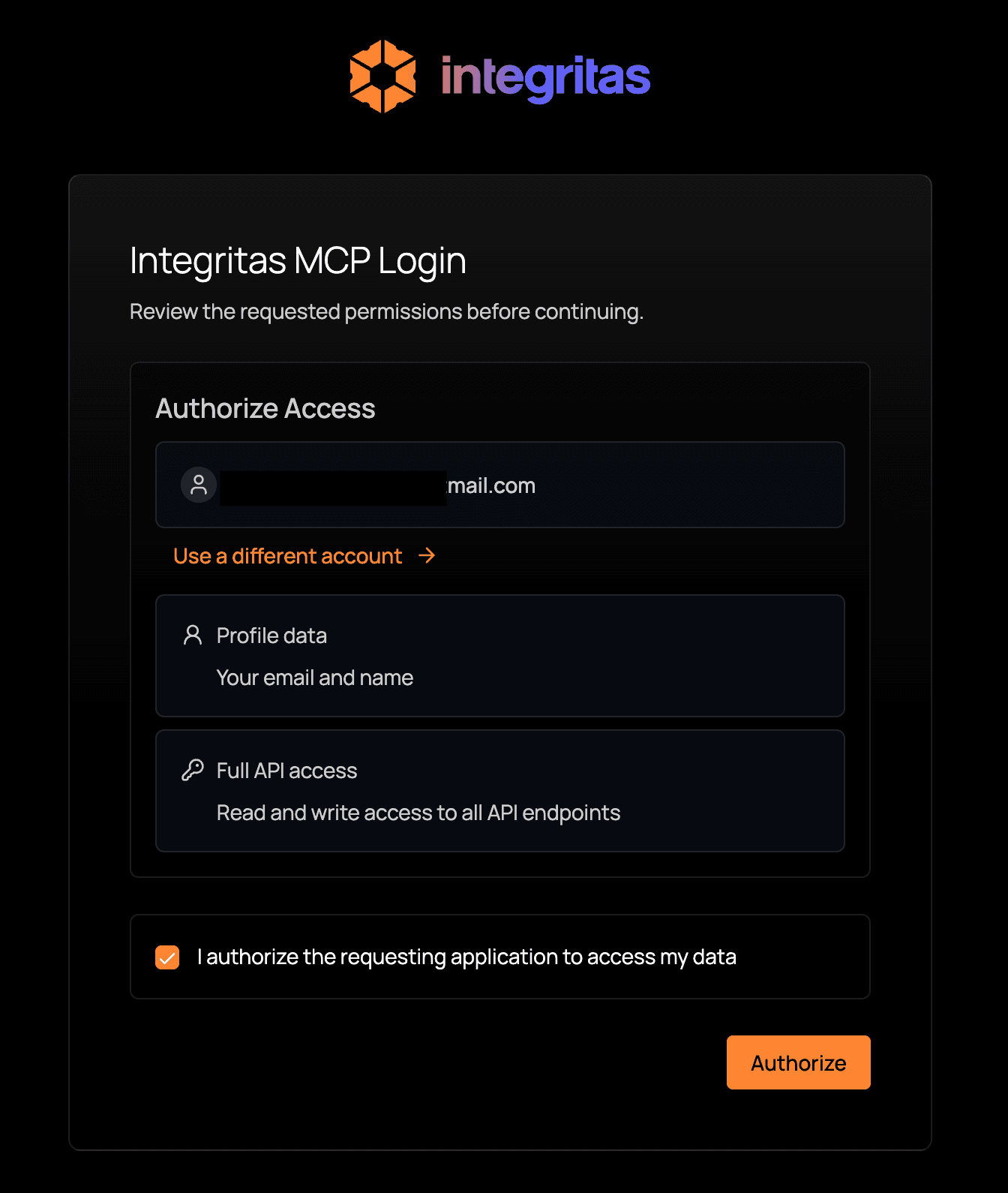
Cursor will redirect you to the Integritas authentication page. Log in, then authorize access to complete the connection.
Integritas authorization page
4. With API key (alternative)
If you want to authenticate with an API key, include the Authorization header:
Replace your-api-key with your actual Integritas API key.
Once saved, the Integritas MCP tools will be available in Cursor.